Getting started
The platform stage by stage, for someone who has never used it: what to do, what you should see, and what to do if you do not see it. Work through the stages in order; each builds on the one before.
Every screen has Report a problem at the top. Use it whenever a step does not do what it says: it sends the office the screen, the time, who you are, the device and the app’s version, with your words and, if you like, a picture. On a screen that shows figures, such as Job cost or Quotes, a picture is read only by those who read those figures.
Tick each step off as you go: your ticks are your own, and each stage shows how many you have done.
Tick each step off in the office’s Getting started, signed in as yourself.
Stage 0: Getting in
Signing in to the office screens, putting the app on a phone, and the crew tablet’s PINs. Only a company administrator adds a phone and issues a PIN: do both before the first day.
Do this
On the phone, open the app’s address. On an iPhone, in Safari, tap Share, then Add to Home Screen, then Add. On Android, in Chrome, tap Install app (or Add to Home screen), then Install.
You should see
EZ on the home screen. Opened from there it fills the screen, with no address bar.
If not, tap Report a problem
Say which step you were on and what you saw instead.
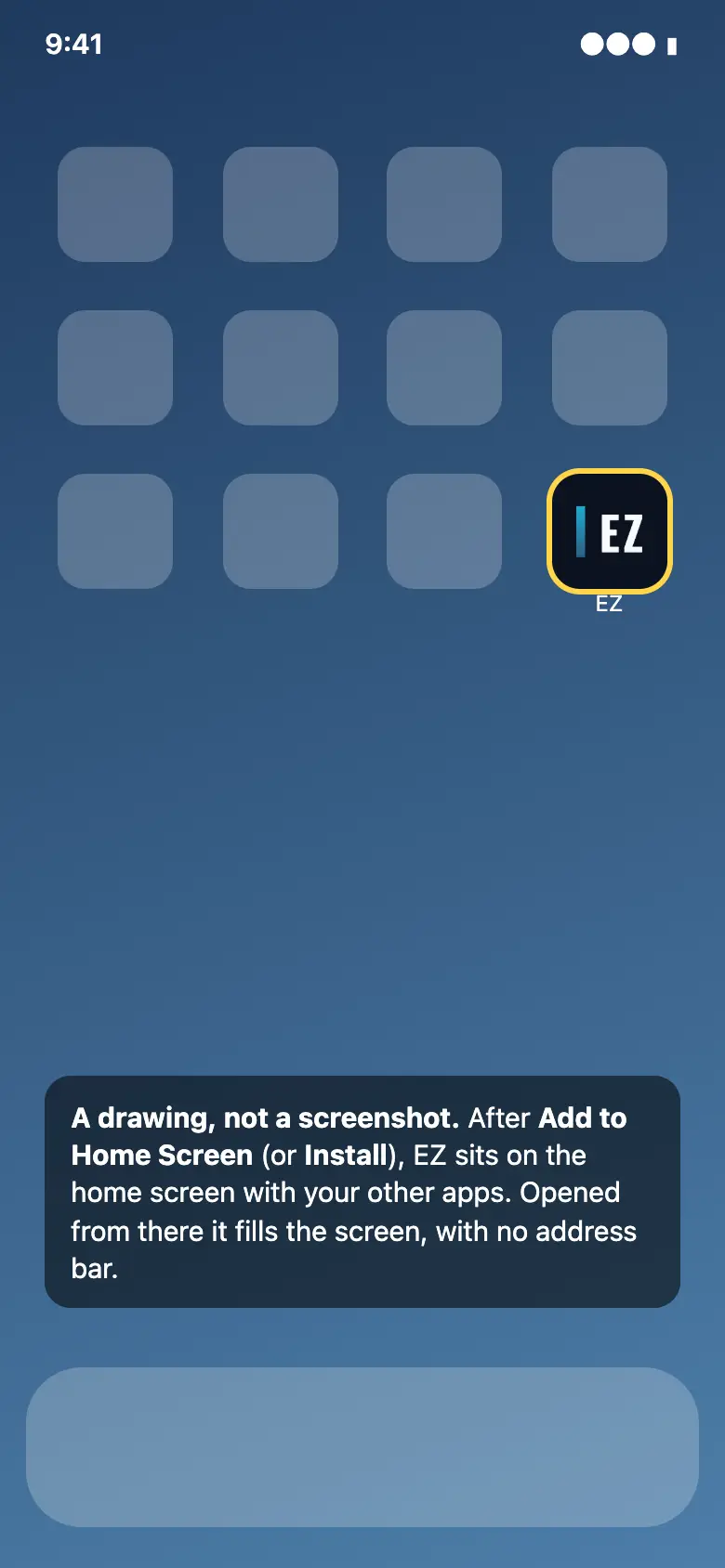
A drawing: no screen of the app shows this. Do this
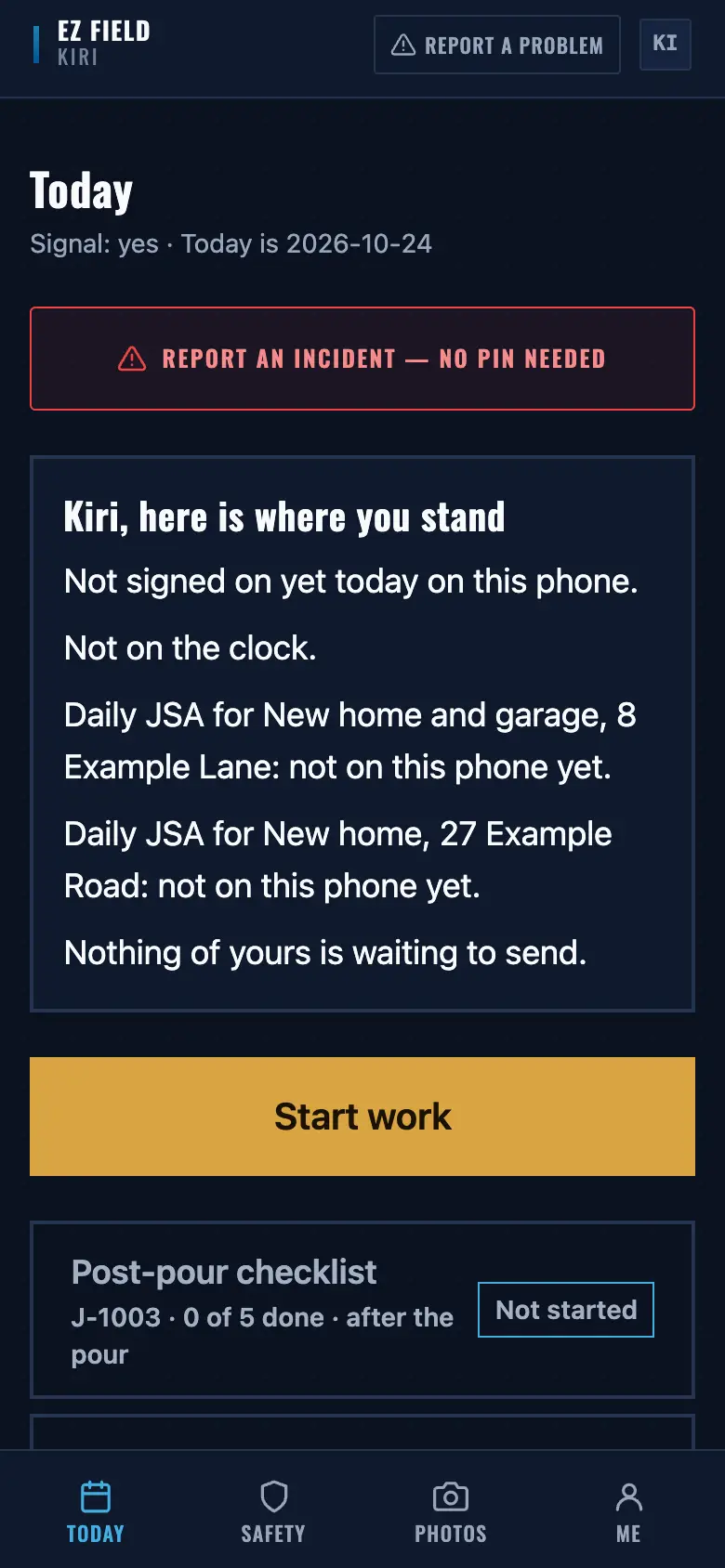
Open EZ from the home screen. The office types the device’s own email and password into Sign this device in, then taps Load today’s site details. A person’s own phone also needs a PIN of that person’s own before they can accept the privacy notice and clock on: a company administrator issues one on Issue a PIN, and they tap Choose your own PIN on Today with signal.
You should see
“Site details for … are on this device”. A person’s own phone opens on Today, as its person; the crew tablet shows Who’s working? with the crew’s names.
If not, tap Report a problem
Say which step you were on and what you saw instead.
Do this
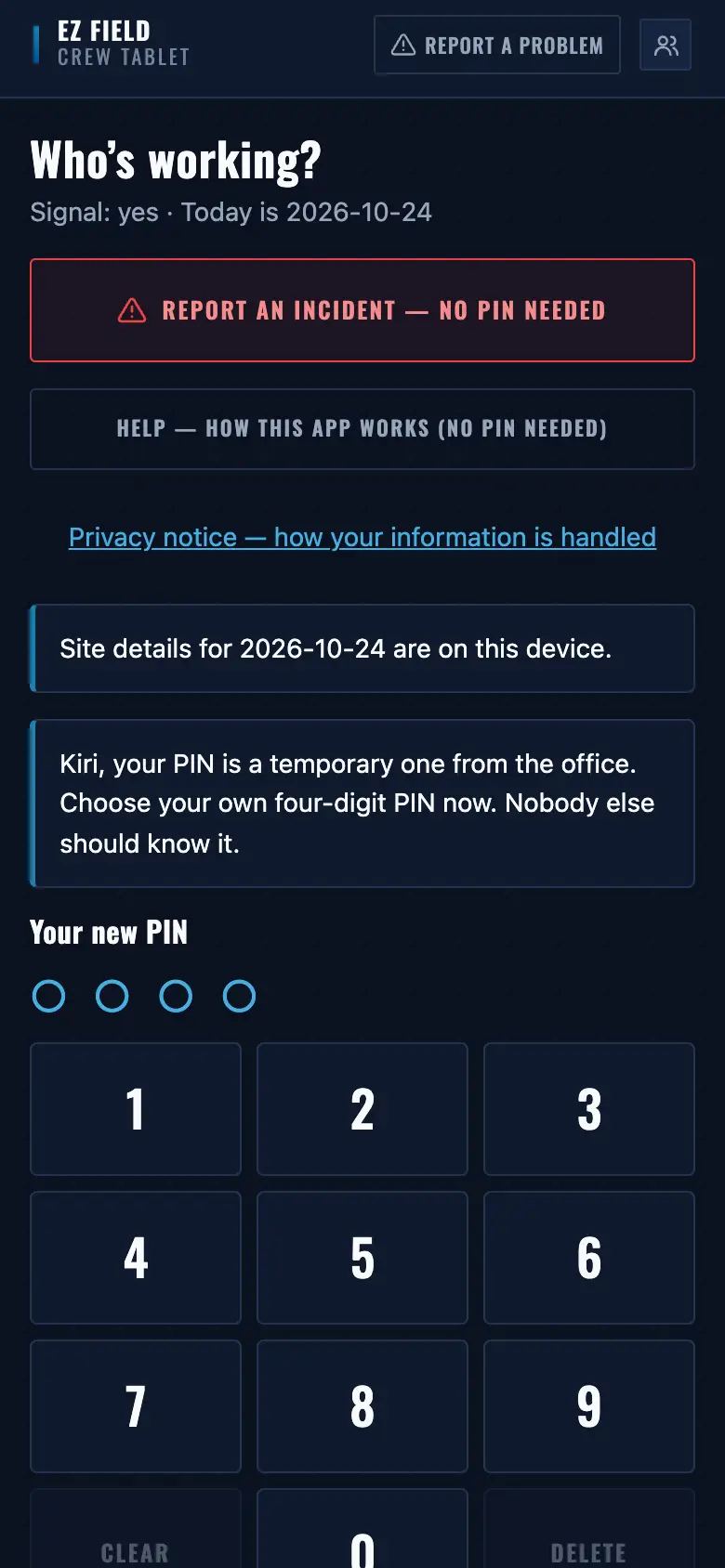
On the crew tablet, with signal, tap Load today’s site details (it reads Refresh today’s site details once the tablet holds site details from an earlier day; the new PIN comes with them), then tap your name on Who’s working? and type the temporary PIN.
You should see
The tablet asks you to choose your own four-digit PIN, then opens as you.
If not, tap Report a problem
Say which step you were on and what you saw instead.
Stage 3: The crew’s day
Signing on, the daily JSA, clocking on, photos by stage, receipts and incidents, on a phone or the crew tablet, and your week on your own phone. Stages 3 and 4 are done on a job you lead today: the one you made in stage 1 (on clean staging, J-1002 is yours to lead too). The daily JSA is run on the crew tablet, never on your own phone, and the tablet holds only the jobs linked to it: a company administrator links your stage-1 job to it on the job’s Admin tab, under Devices (on clean staging the tablet already carries J-1002 and J-1003).
Do this
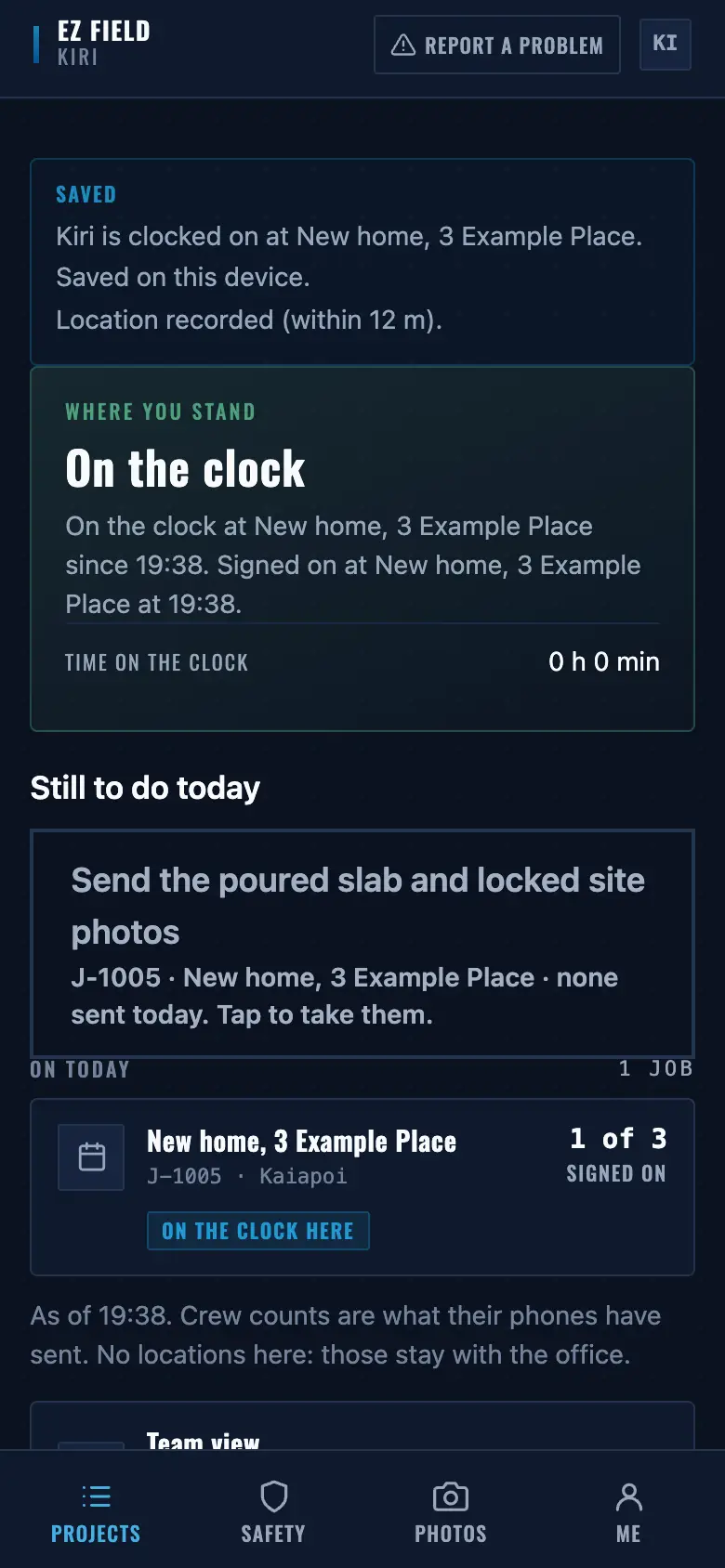
First, with signal, tap Refresh today’s site details (at the foot of Today or My projects on your phone; on Who’s working? on the crew tablet), so the job you set up is on the device. Then on your own phone tap Start work on Today (a team leader’s phone opens on My projects instead: open the job you’re at, then Start work here; the job is already chosen); on the crew tablet unlock with your PIN and tap Sign on to site. Choose the site, read Before you start at …, and tap I agree — sign on.
You should see
Saved on this device. In the office, Signed on today (a tab of Roll-call) lists you once it is sent.
If not, tap Report a problem
Say which step you were on and what you saw instead.
Do this
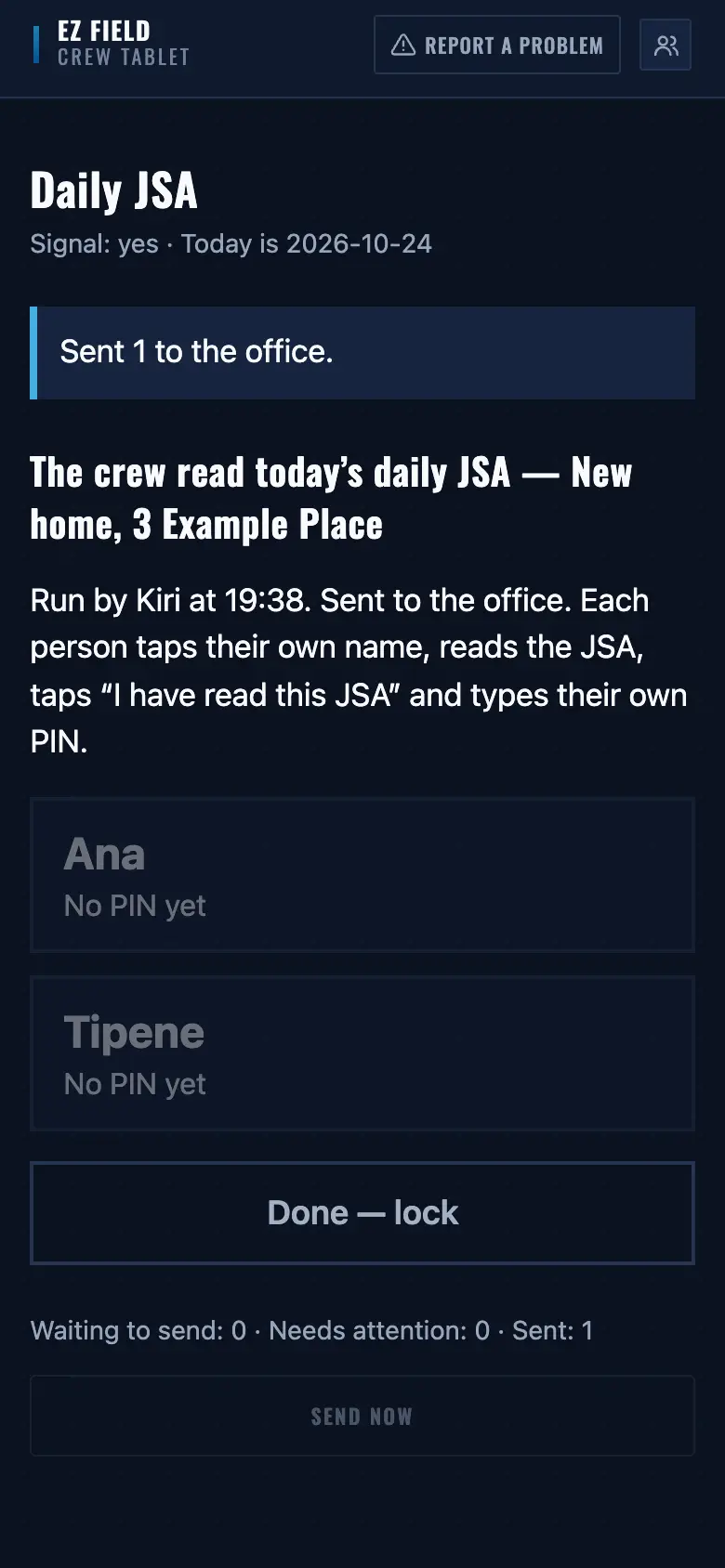
On the crew tablet, never your own phone (it only lets you say you have read it), with signal tap Refresh today’s site details so the tablet has your job, then unlock as the job’s team leader. Tap Daily JSA, choose the site, tap Run today’s daily JSA, tap each item as you check it, type Today’s conditions and the First aider on site today, then Save today’s daily JSA with your PIN. Hand the device to the crew: each reads it and says so with their own PIN. On clean staging the example crew have no PIN: to see someone read it, put another tester on the job’s crew at stage 1 and have them tap their name here.
You should see
The crew read today’s daily JSA, listing the job’s crew, you excepted. Anyone with a PIN of their own shows Not read yet, then ✓ Has read it once they type it; the example crew show No PIN yet and cannot be tapped.
If not, tap Report a problem
Say which step you were on and what you saw instead.
Do this
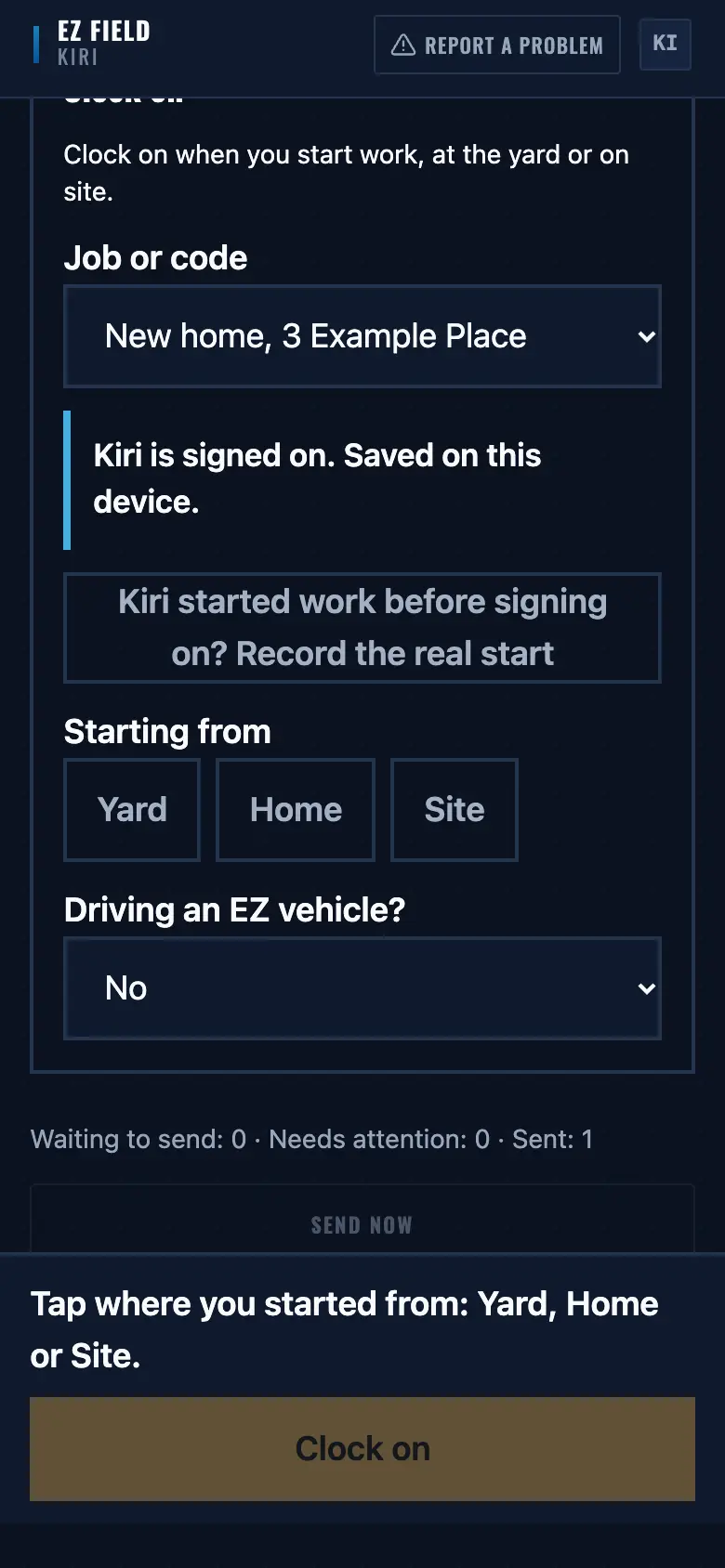
Tap Clock on and off (on your own phone, Start work — or Start work here on the job’s page — does it), choose the job, where you are starting from and a vehicle if you drive one, and tap Clock on.
You should see
Saved on this device, then sent once there is signal. The office’s roll-call shows you on the clock.
If not, tap Report a problem
Say which step you were on and what you saw instead.
Do this
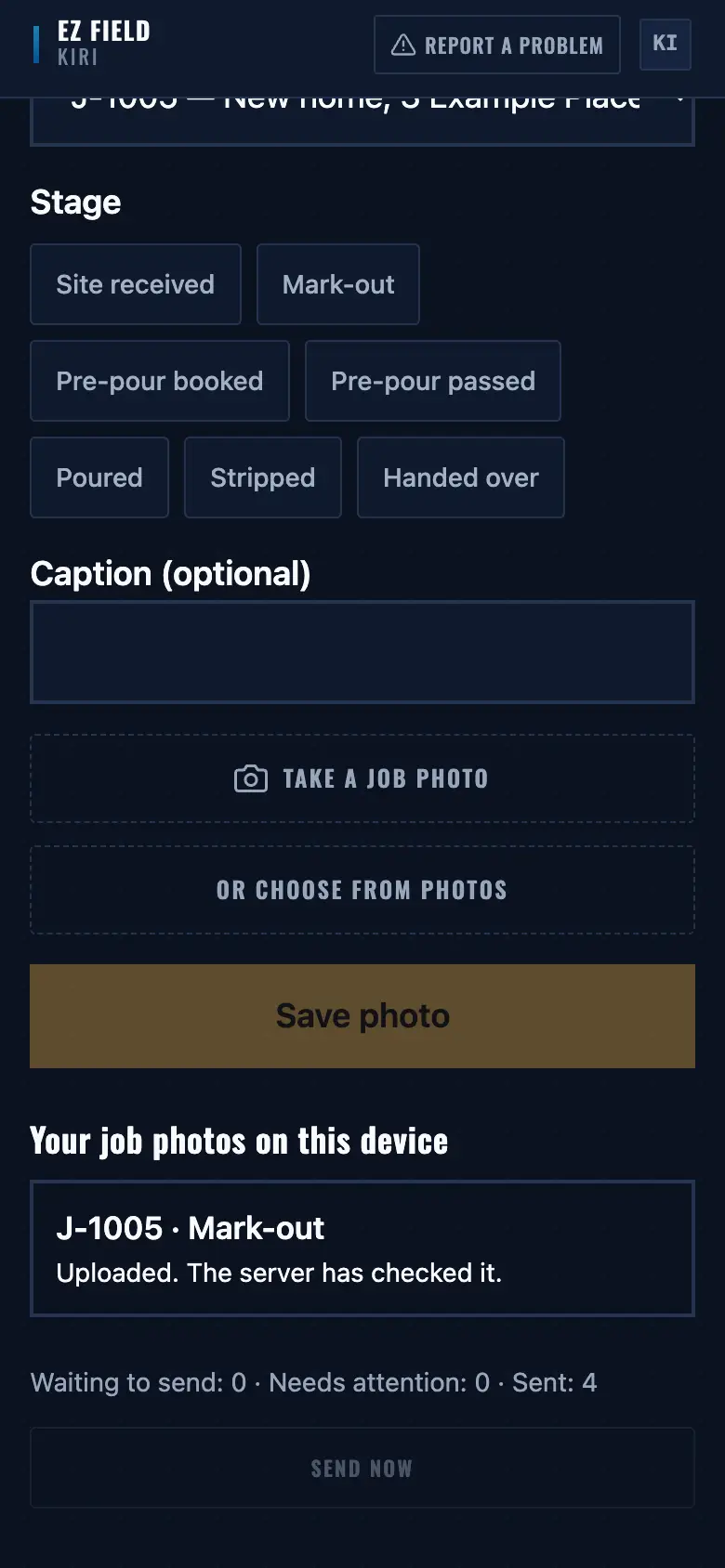
A team leader taps Job photo, chooses the job and the stage (Mark-out, Poured or Stripped, or another), takes the photo and taps Save photo, then types their PIN.
You should see
The photo under Your job photos on this device, Uploaded once the office has checked it, and on the office’s Job photos under its job and stage.
If not, tap Report a problem
Say which step you were on and what you saw instead.
Do this
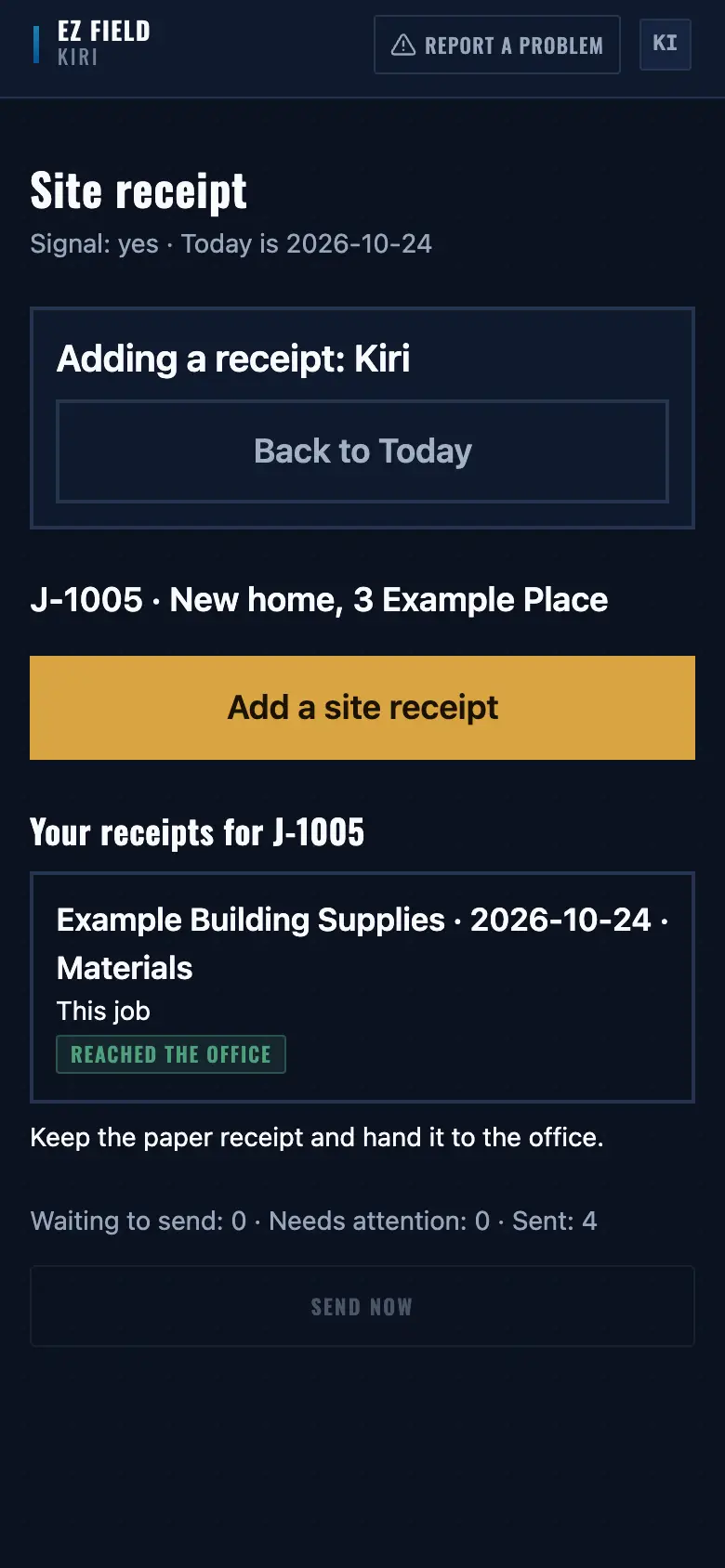
A team leader opens the job’s page, taps Receipts, then Add a site receipt; taps For this job, photographs the receipt, types the store, the date and the total as printed, says how it was paid, taps what was bought, and taps Next: your PIN. Until every answer is in, the form lists what is missing.
You should see
The receipt saved, and on the office’s Site receipts (a tab of Receipts and invoices) once it is sent. (Site receipts show only once the office has switched them on.)
If not, tap Report a problem
Say which step you were on and what you saw instead.
Do this
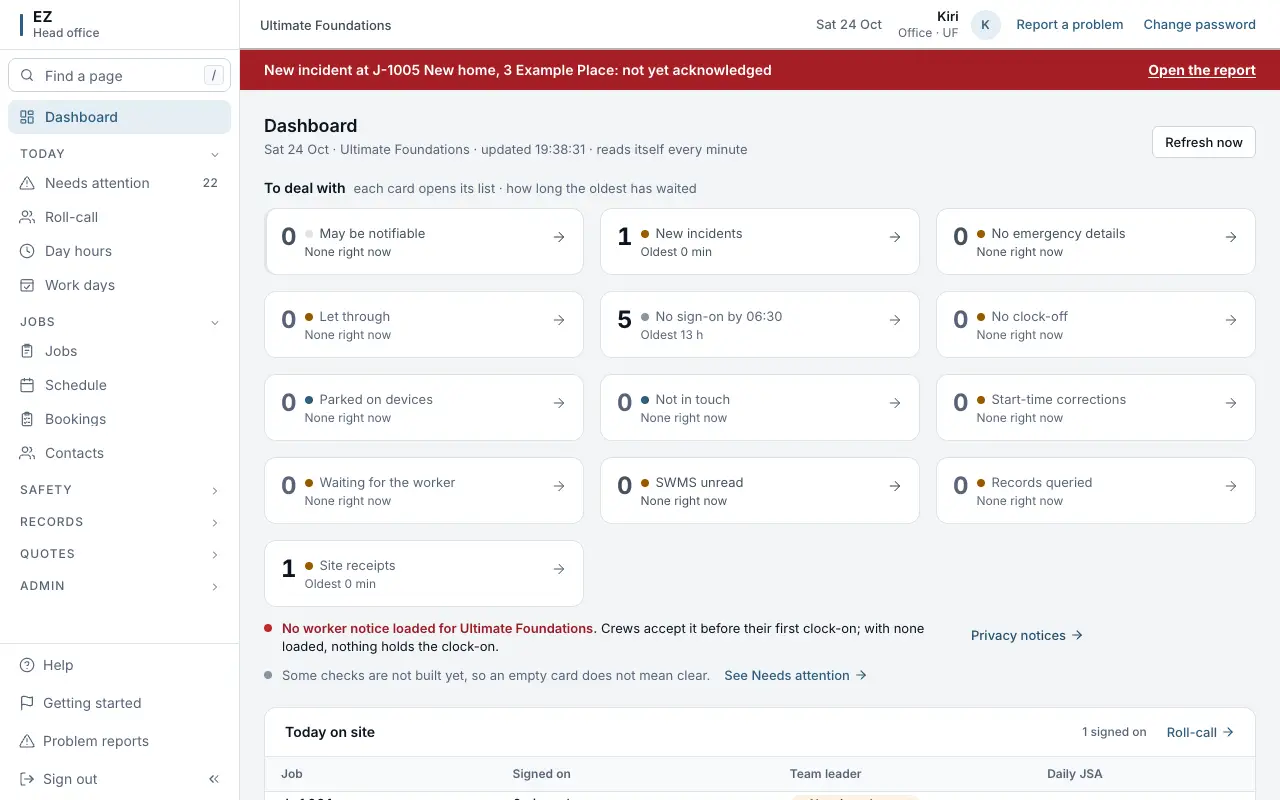
Tap the red Report an incident — no PIN needed and answer each question. In What happened, write it as you would tell the office, such as “Tripped on a loose board by the gate. Nobody hurt.” Then tap Save the report.
You should see
The report saved; in the office, the red bar New incident at …: not yet acknowledged until someone acknowledges it on Incidents.
If not, tap Report a problem
Say which step you were on and what you saw instead. Anyone hurt for real: call 111 first, then the office.
Do this
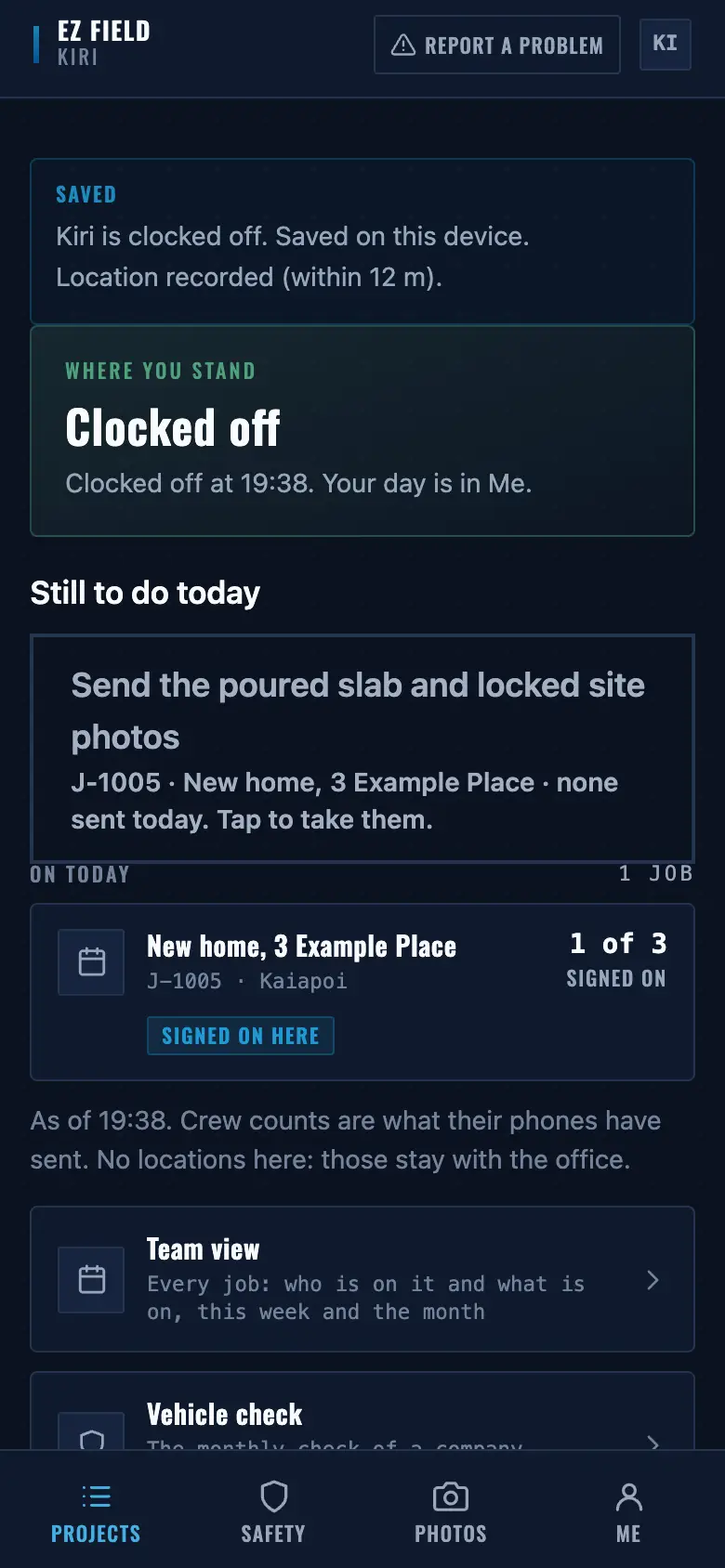
At the end of the day, open Clock on and off and tap Clock off now.
You should see
Saved on this device, and the day’s hours on the office’s Day hours once it is sent.
If not, tap Report a problem
Say which step you were on and what you saw instead.
Do this
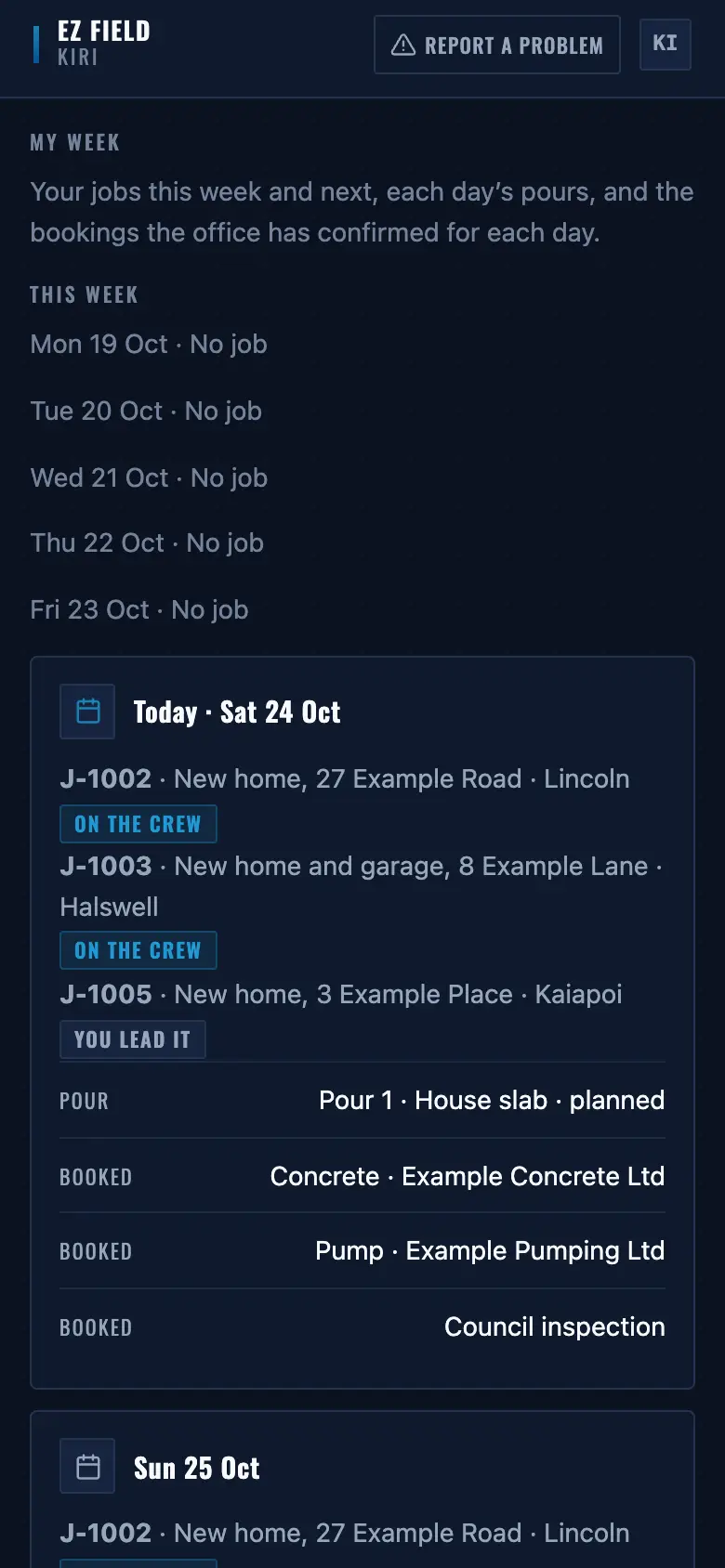
Open My week: on your own phone tap Me, then My week.
You should see
This week and next, Monday to Sunday. Under each day, your jobs, with You lead it or On the crew, the pours, and the bookings the office has confirmed. With no signal, what the phone last read, with As of and its time.
If not, tap Report a problem
Say which step you were on and what you saw instead.
Do this
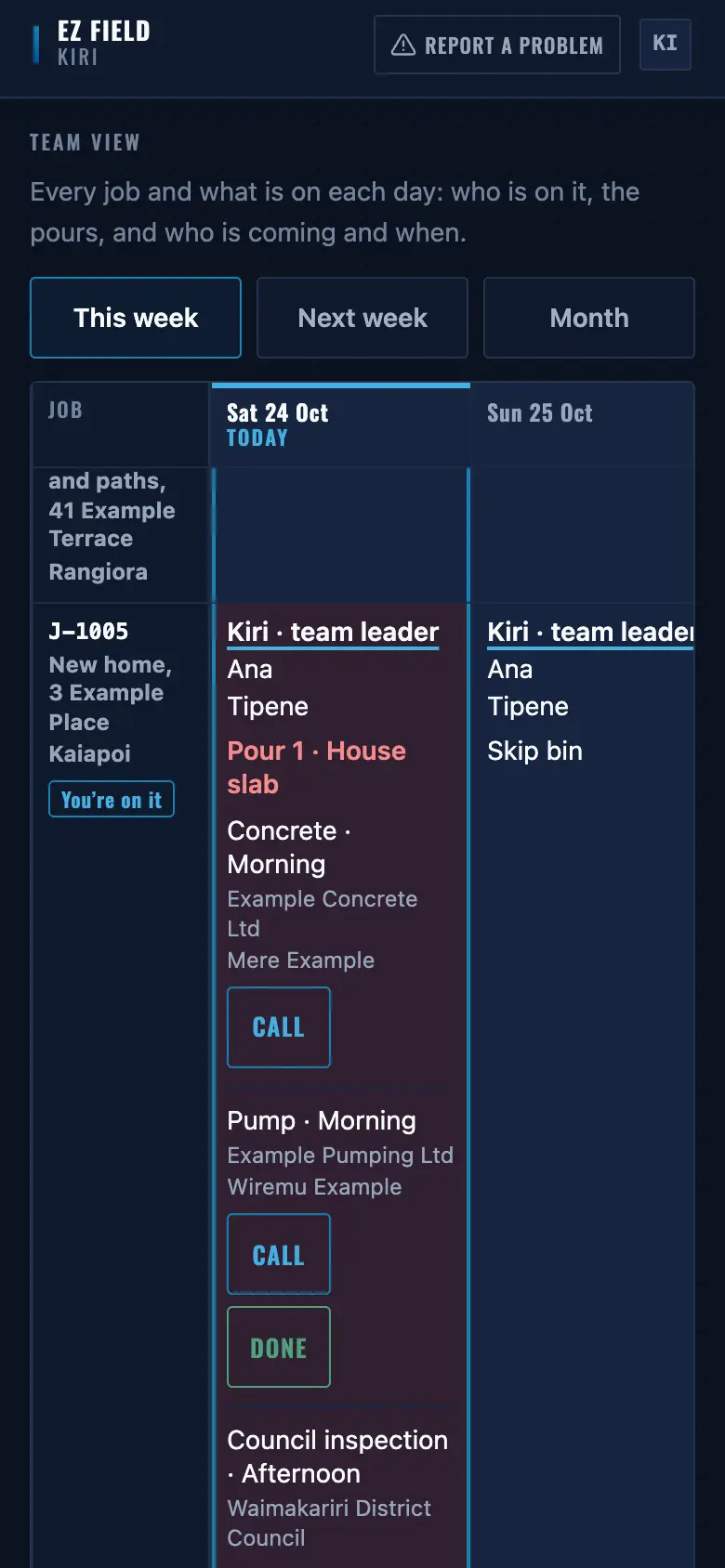
Open Team view: on your own phone tap it on Today (on My projects on a team leader’s phone) or at the foot of My week. Then tap Next week, and Month.
You should see
Every job down the side and the days across, this week first: who is on each job each day, the team leader first, the pours in red until poured, and who is coming and when, such as Plumber · Morning. Weekends and holidays are shaded. On a team leader’s phone, the jobs they lead also show the person with Call, and Email where they have one. The office sees the same on Schedule, Team view.
If not, tap Report a problem
Say which step you were on and what you saw instead.
Do this
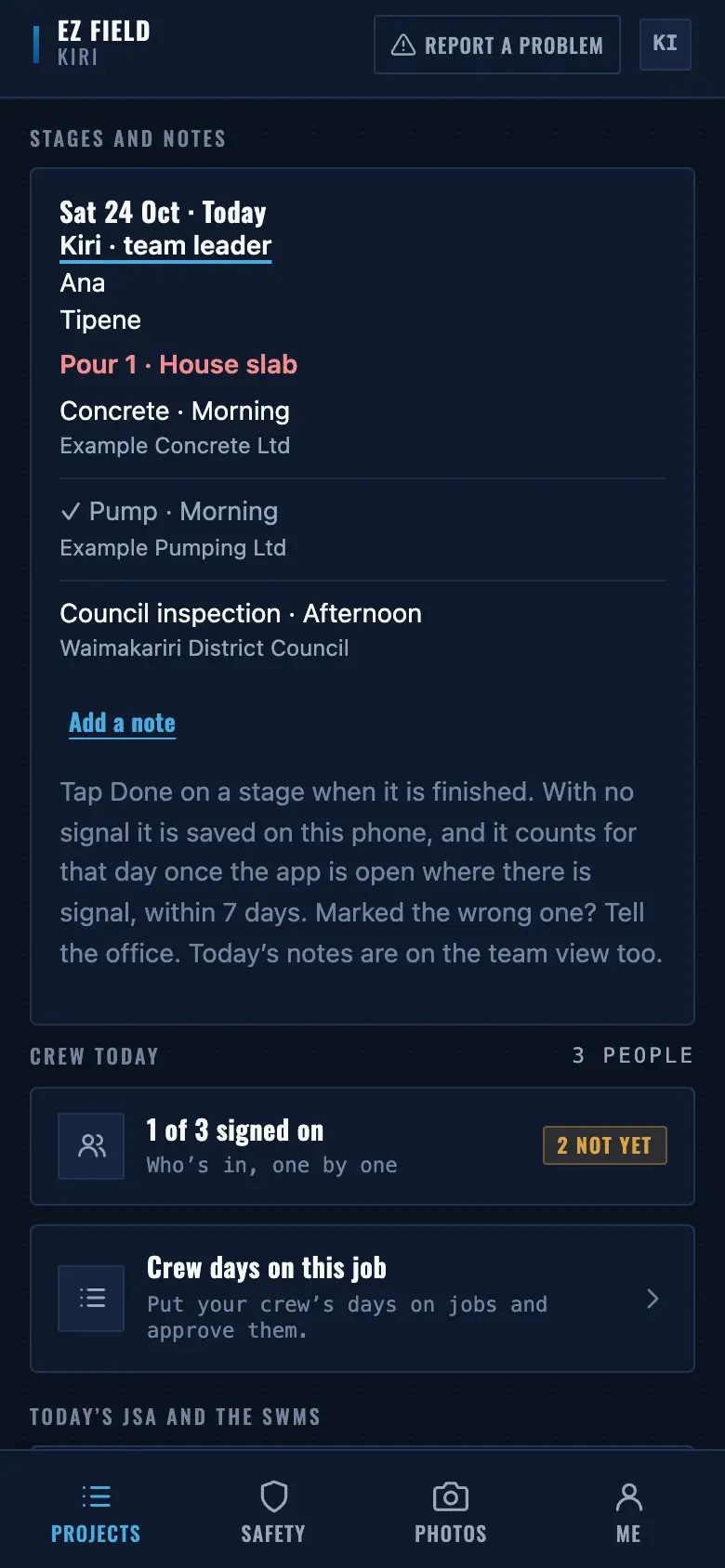
Done is offered only on a stage planned for today or earlier: in the office, on the job’s Plan and bookings, press Move the day on a line such as Plumber, choose today and say why. On a team leader’s own phone, on a job they lead today: open Team view (or the job’s page from My projects), tap Done on a stage when it is finished, such as the plumber or the boxing, then Yes, done. Try it with no signal too.
You should see
The stage ticked straight away. With no signal it says it goes to the office when there is signal. The office sees it Done on the job’s Plan and bookings, with the team leader’s name in its history. A council inspection, the pour and the office’s own lines (Accommodation and travel, Builder update) offer no Done.
If not, tap Report a problem
Say which step you were on and what you saw instead.
Do this
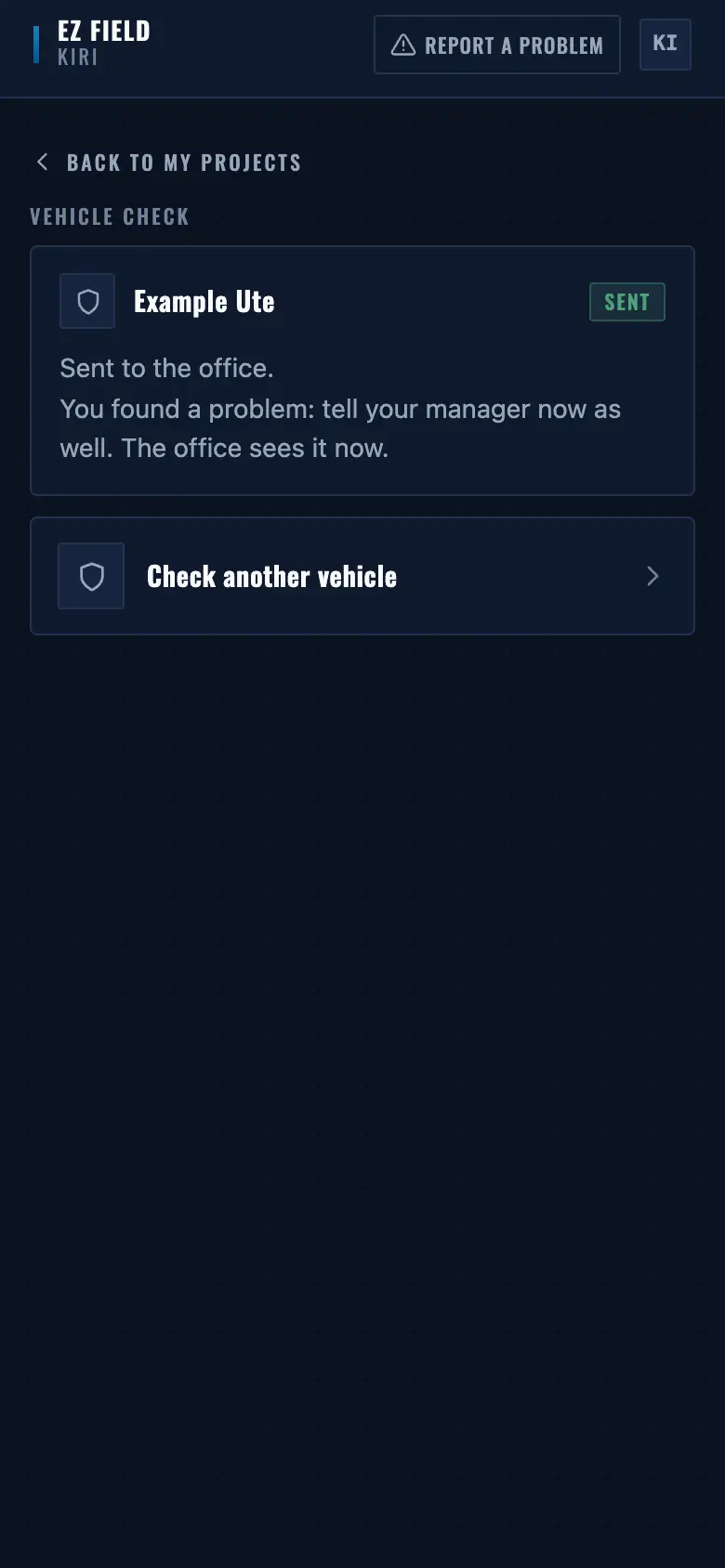
In the office, a company administrator (or whoever holds the loading switch) adds a Ute, Van, Truck or Car on Vehicles (the kinds the check covers) and sets you as its Assigned driver, so Vehicle check: shows on your Today. On your own phone tap Vehicle check on Today (on My projects on a team leader’s phone) and choose the vehicle. Choose its trailer or No trailer, answer each item OK, Problem or N/A (a problem asks What’s wrong?), then Sign it off with your PIN.
You should see
Saved on this phone, waiting to send, then Sent to the office once the office system has it. The office sees the vehicle Checked this month on Vehicle checks; a problem is on Needs attention once it is sent. A vehicle’s assigned driver sees Vehicle check: and the vehicle on Today until the month’s check is in.
If not, tap Report a problem
Say which step you were on and what you saw instead.
Stage 4: Pour and after
The rib-raft pre-pour checklist, each pour, and the post-pour and stripping checklists.
Do this
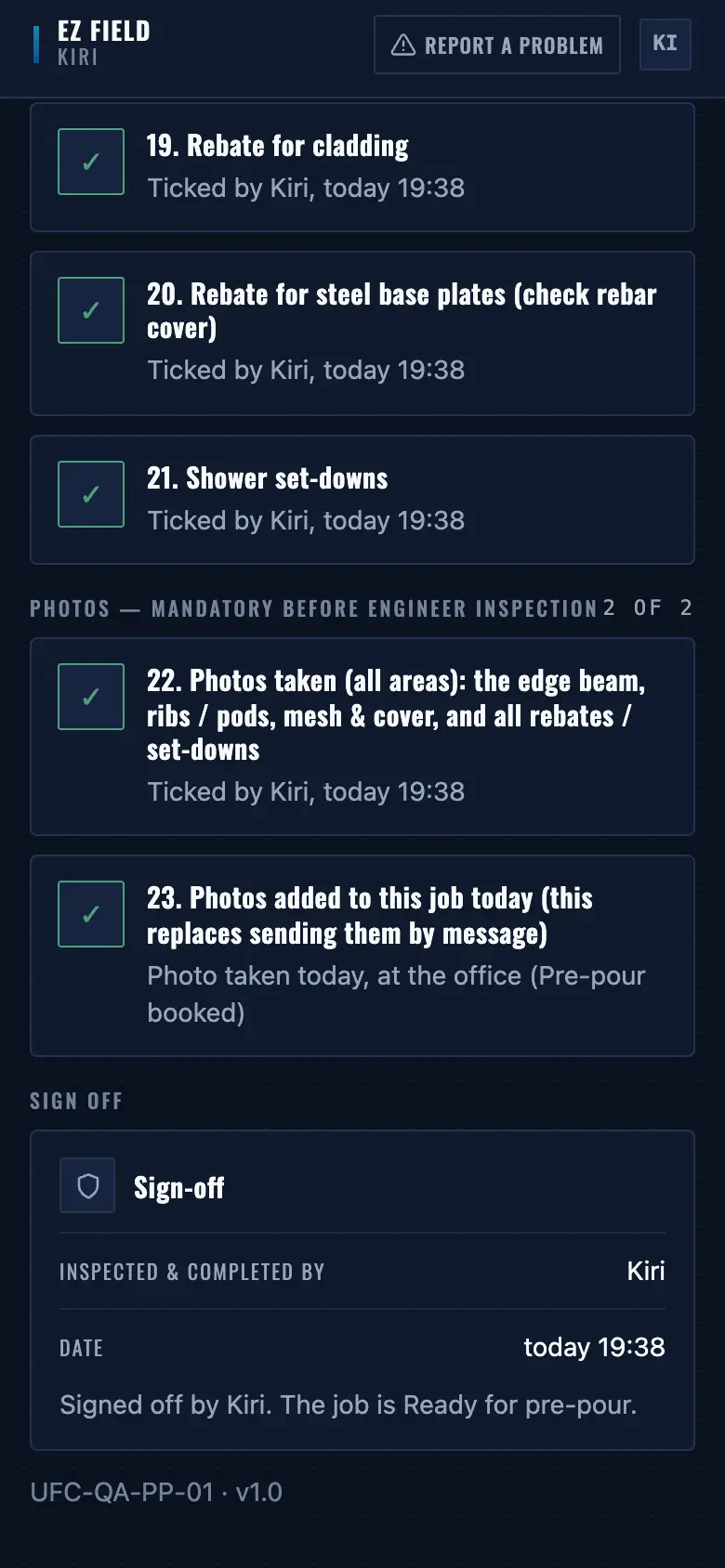
On Today (or the job’s page on a team leader’s phone) open the Rib-raft pre-pour checklist. Tick each item, type the numbers and notes it asks for, take the photos it asks for, and sign it off with your name and PIN. If the job is not a pod or waffle raft the checklist is not offered: either the office sets Pre-pour checklist needed? to Needed (and says Why) on the job’s Pour and after tab, and it appears on the phone, or skip this step, as on that job Pre-pour passed and the pour are not held for it.
You should see
The checklist signed off, and on the job’s page in the office. On a raft, until then Pre-pour passed and the first pour are refused, saying how many items are done.
If not, tap Report a problem
Say which step you were on and what you saw instead.
Do this
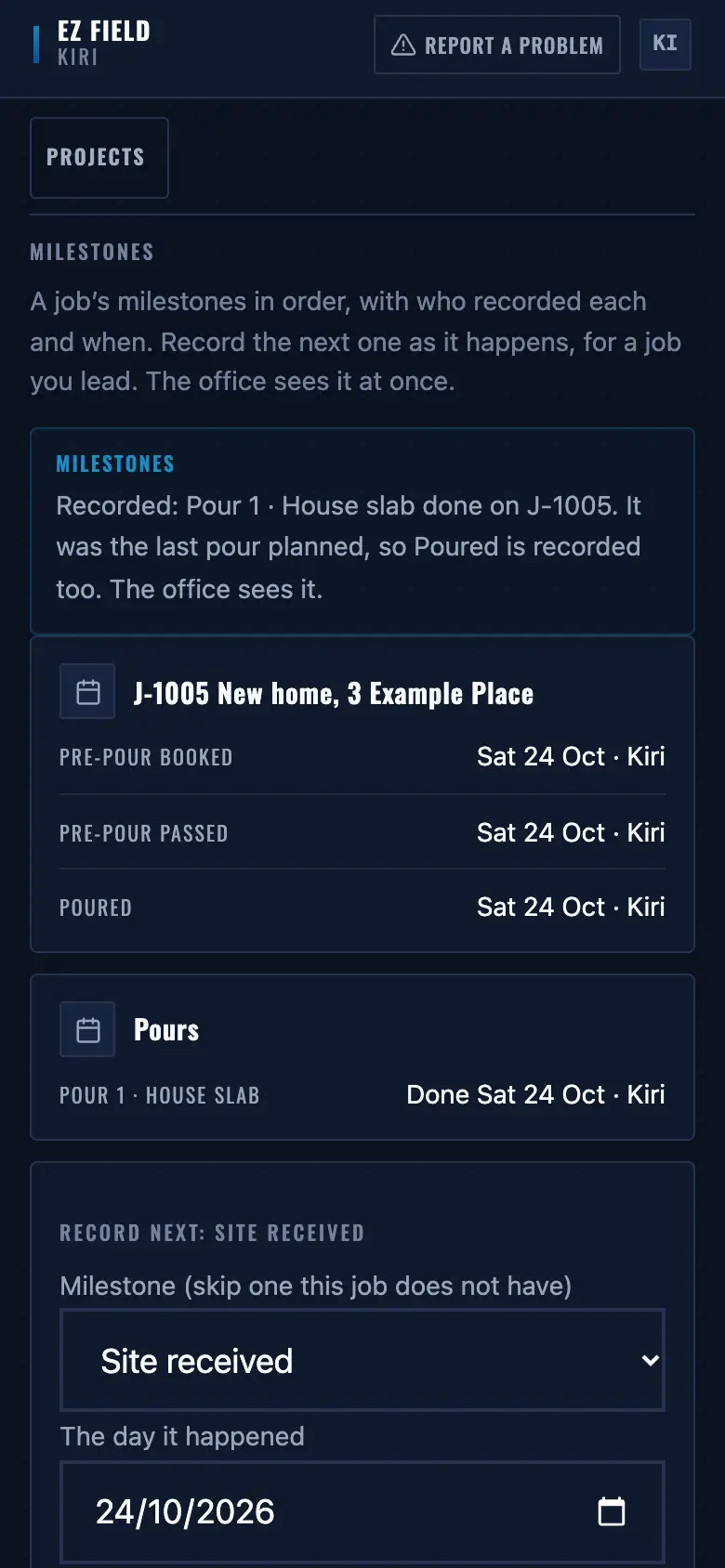
When a pour is done, the team leader opens Milestones, chooses the job, chooses Pour 1 · House slab done and taps Record. (The office can press Record it done on the pour instead.)
You should see
The pour done. Once the last pour planned is done, Poured is on the job’s Pour and after tab.
If not, tap Report a problem
Say which step you were on and what you saw instead.
Do this
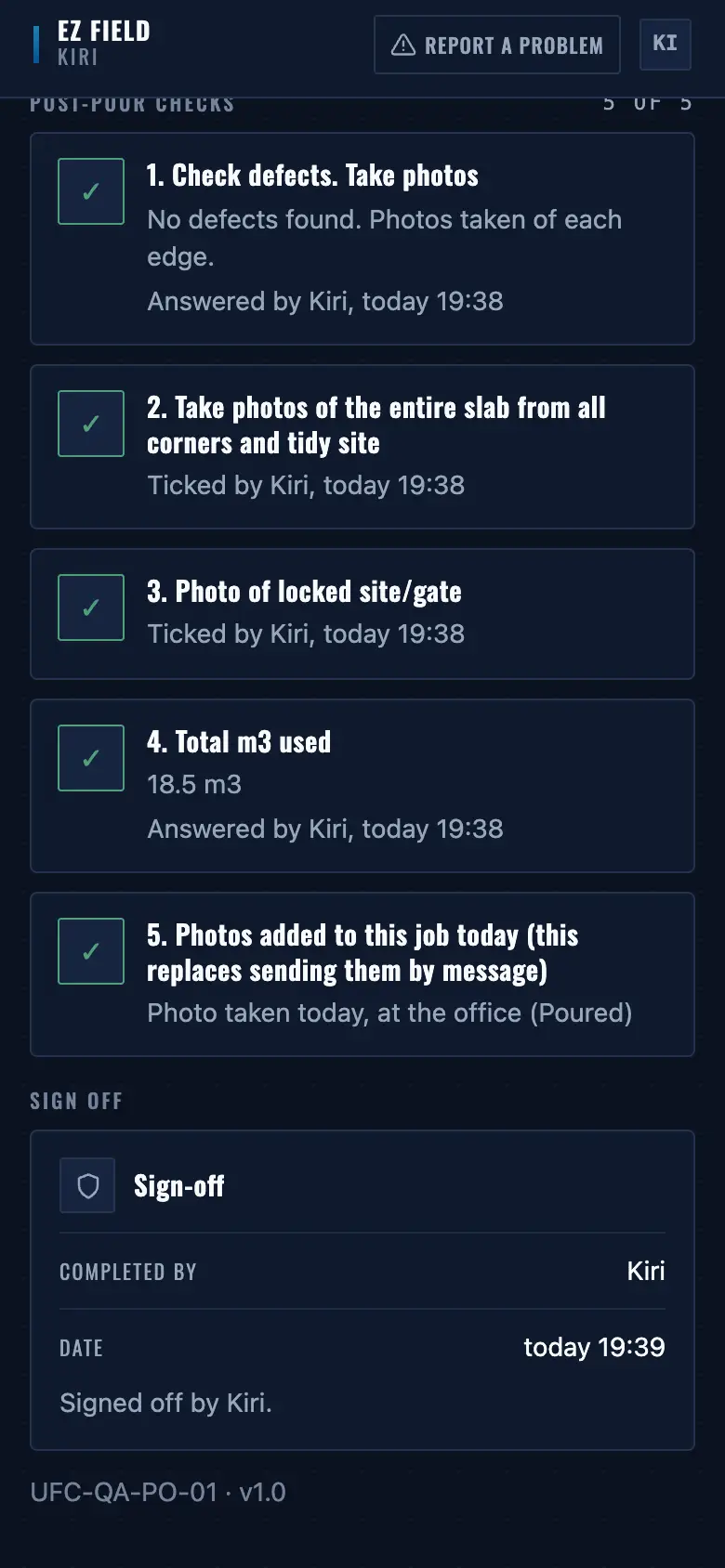
On pour day open the Post-pour checklist: type the Total m3 used, note any defects, take the photo at Poured, and sign it off.
You should see
The post-pour checklist signed off on the job’s page in the office.
If not, tap Report a problem
Say which step you were on and what you saw instead.
Do this
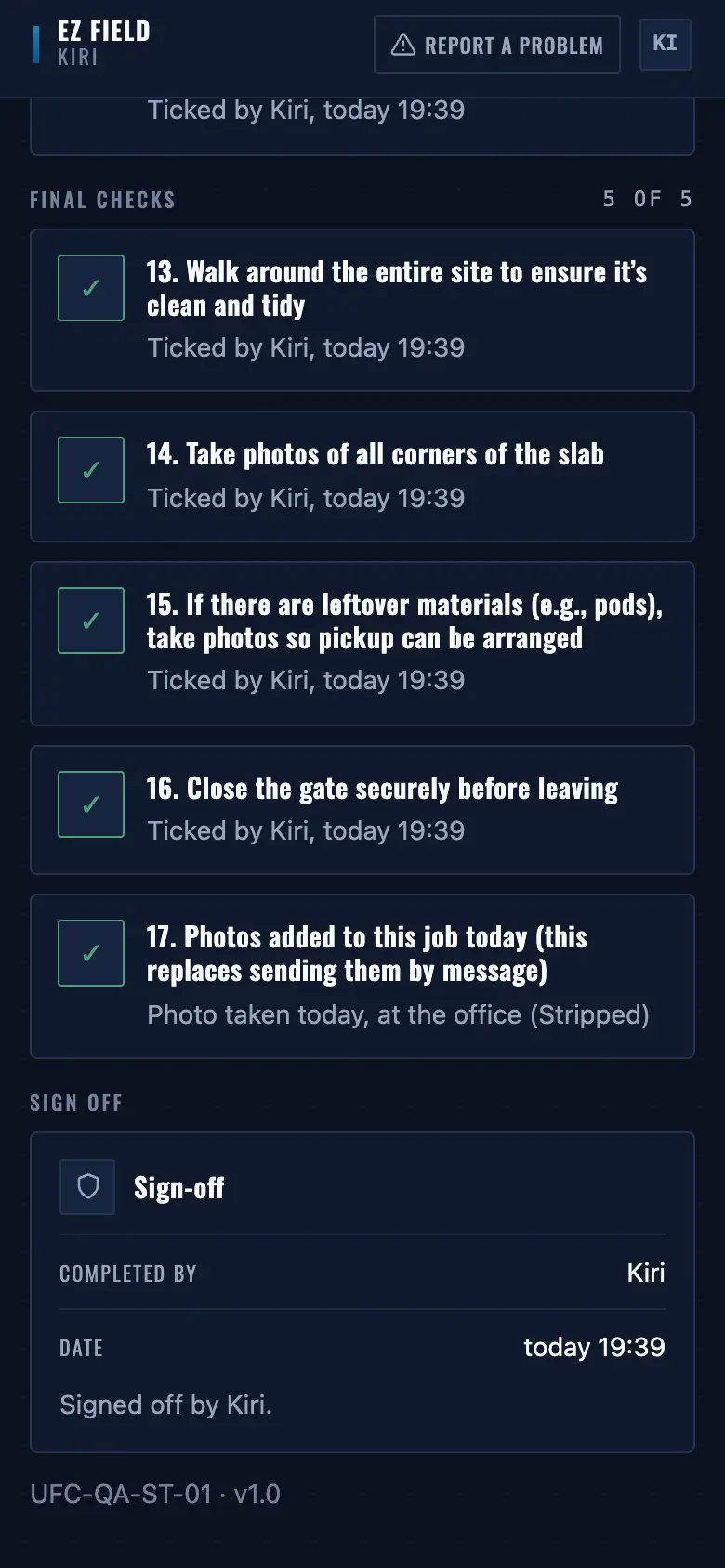
After the strip, open the Stripping checklist, do it the same way with the photo at Stripped, and sign it off. The office marks the plan’s Strip line Confirmed, then Done.
You should see
The stripping checklist signed off, and Strip done on the plan.
If not, tap Report a problem
Say which step you were on and what you saw instead.